As many of you know, I use Linkding to manage my bookmarks. The tool's simple, self-hosting-oriented nature fits perfectly with my philosophy of retaining control over my data. One particularly useful feature is the archive function, which creates an offline snapshot of a website. This keeps important information available even if the original page goes offline.
But what if the website you want to archive is behind a login? Linkding tries to create a snapshot of the page through its server. However, this server has no access to content that requires signing in, or is blocked by annoying cookie banners. In such cases, server-side archiving may fail, and this is exactly where a clever client-side approach comes into play.
The Workflow: Client-Side Archiving with Singlefile
The solution I have discovered for myself over the past few weeks is a combination of two browser plugins: the official Linkding extension and the Singlefile plugin (available for Chrome and Firefox). Singlefile has the advantage of being able to save a complete website, including all assets (CSS, images, JS), in a single HTML file. The best part is that this happens directly in your browser, so it makes no difference whether the page is behind a login or not.
The trick is configuring the two plugins to work together directly. The Linkding extension can be configured to use the Singlefile extension to create the archive. Singlefile then sends the generated snapshot to your server via the Linkding REST API to store it there. You get a complete, self-created archive—without any of the server-side limitations.
Configuring the Browser Extensions
For this optimized workflow to work, both browser extensions need to be configured accordingly.
- Configure Singlefile:
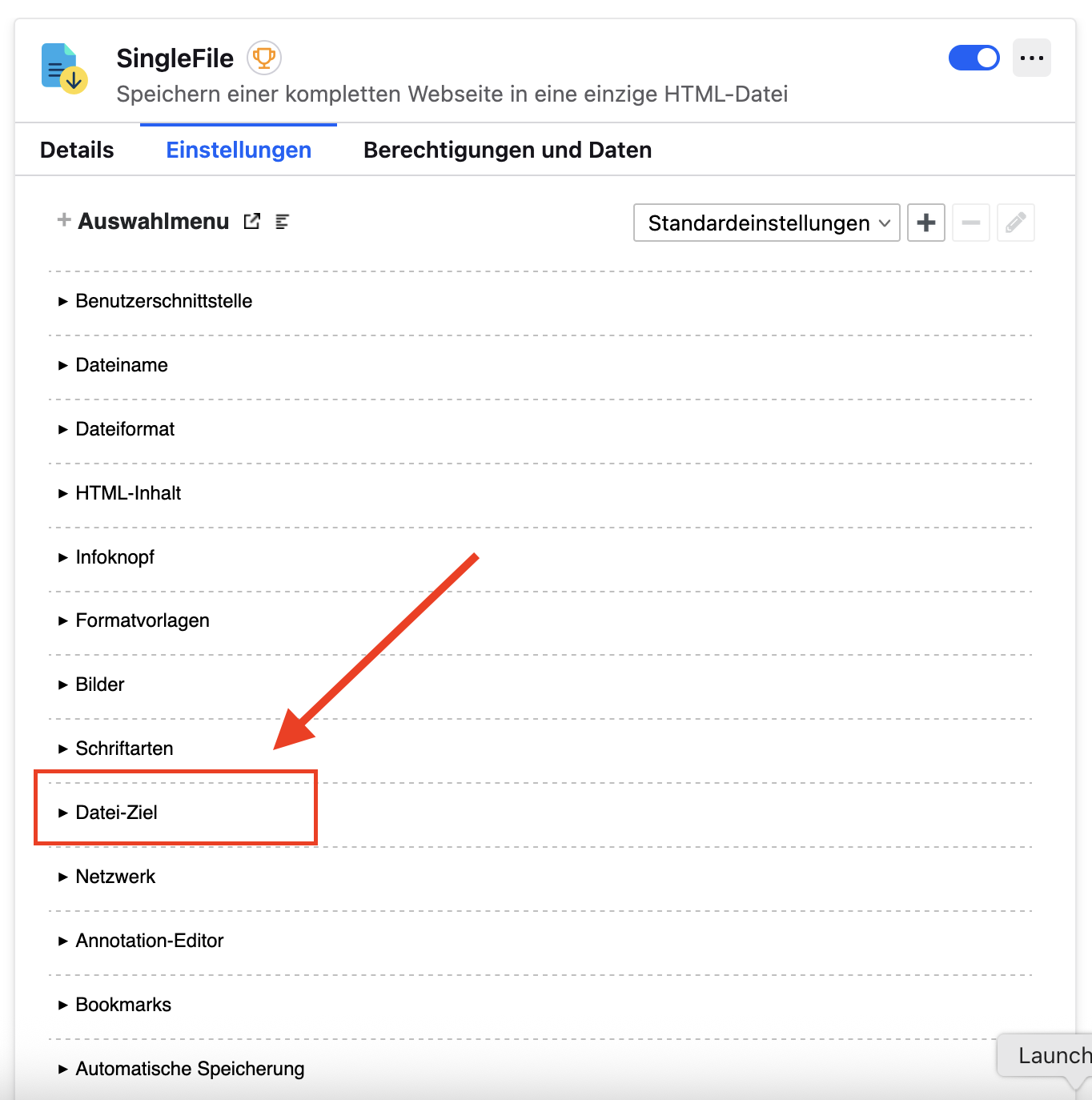
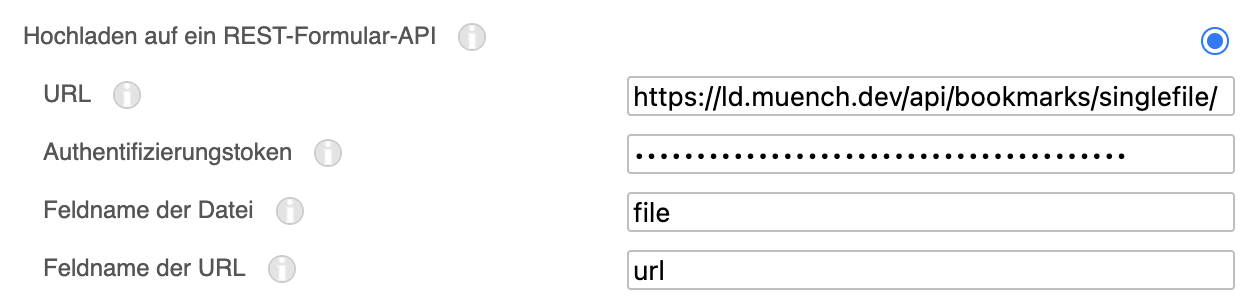
In Singlefile's settings, navigate to the "File destination" section. There you will find the option to configure a webhook upload. Here you specify that the snapshot should be sent to the Linkding API endpoint via aPOSTrequest.
-
Set up the Linkding extension:
In the Linkding extension's settings, enable the Run Singlefile after edding new bookmark option. This tells the plugin not to use the default workflow for archiving but to delegate to Singlefile instead. It is important to ensure that the Linkding server accepts API requests from Singlefile. Authentication uses an API token that you enter in the Linkding extension.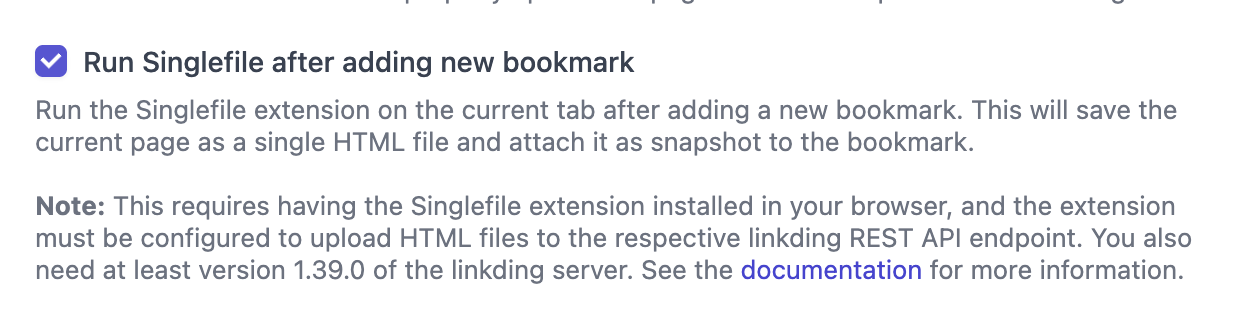
Benefits of the Combined Workflow
Using these two tools offers several decisive advantages:
- Offline availability: You create a reliable, complete offline archive that also works with complex websites.
- Full control: All data stays locally on your computer and is then uploaded to your self-hosted Linkding server, ensuring data sovereignty.
- Saving time and hassle: The process runs automatically in the background. You no longer need to manually take care of saving and uploading. This is especially convenient if, like me, you work on the command line and only use the graphical interface for tasks like these.