
I really enjoy working with Codex through the CLI. Codex CLI gets better with every release. When you try to follow what Codex is doing, things can sometimes get very confusing. Particularly when a session runs for a long time, the log output becomes very long. Codex does try to make the output as user-friendly as possible, for example by using emojis or structuring the output with bullet points, but it is still not always possible to keep track of everything.
Since our job as software developers is increasingly moving toward supervising AI, it is important to maintain an overview.
In this context, I came across the tool CodeXRays. The tool is written in Python and analyzes Codex's log output in real time. You simply start it alongside your Codex session.
Installation and Configuration
In the simplest case, installation is done through pipx. You should be able to get pipx up and running easily in your development environment, if it is not already there anyway.
Here is the one-liner that installs the tool directly from the GitHub repo:
pipx install git+https://github.com/gastonmorixe/codex-xrays
It is now important to configure the logger of codex-cli, which is written in Rust. This is done by setting the environment variable RUST_LOG.
If you want the variable to always be set, add the following to your .zshrc or .bashrc (with slight differences depending on the shell):
RUST_LOG=codex_core=trace,codex_exec=debug,codex_mcp_client=debug
Alternatively, you can place the variable directly before the execution of codex-xrays.
That should be all for the setup.
Making the Log Look Nice (Running It)
As mentioned earlier, the tool usually runs alongside Codex CLI. So start your Codex session as normal.
Then start codex-xrays in a second terminal.
Starting it with the following command is recommended for the nicest output:
codex-xrays --pretty-preview --pretty-mode hybrid --json-pretty
Example Output
In my case, I had it update my AGENTS.md in a project.
CodexXRays is interactive. In the window, you can use the cursor
keys to select log messages and press "Return" to see the detailed messages.
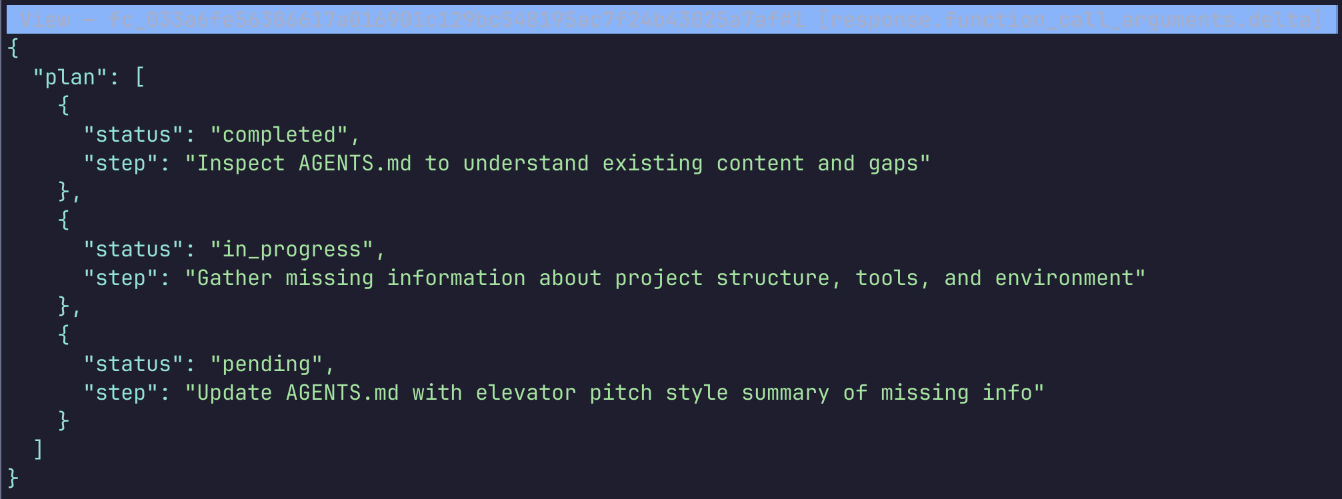
It is also important for me to see exactly which commands are being executed in Bash, as shown in this example:
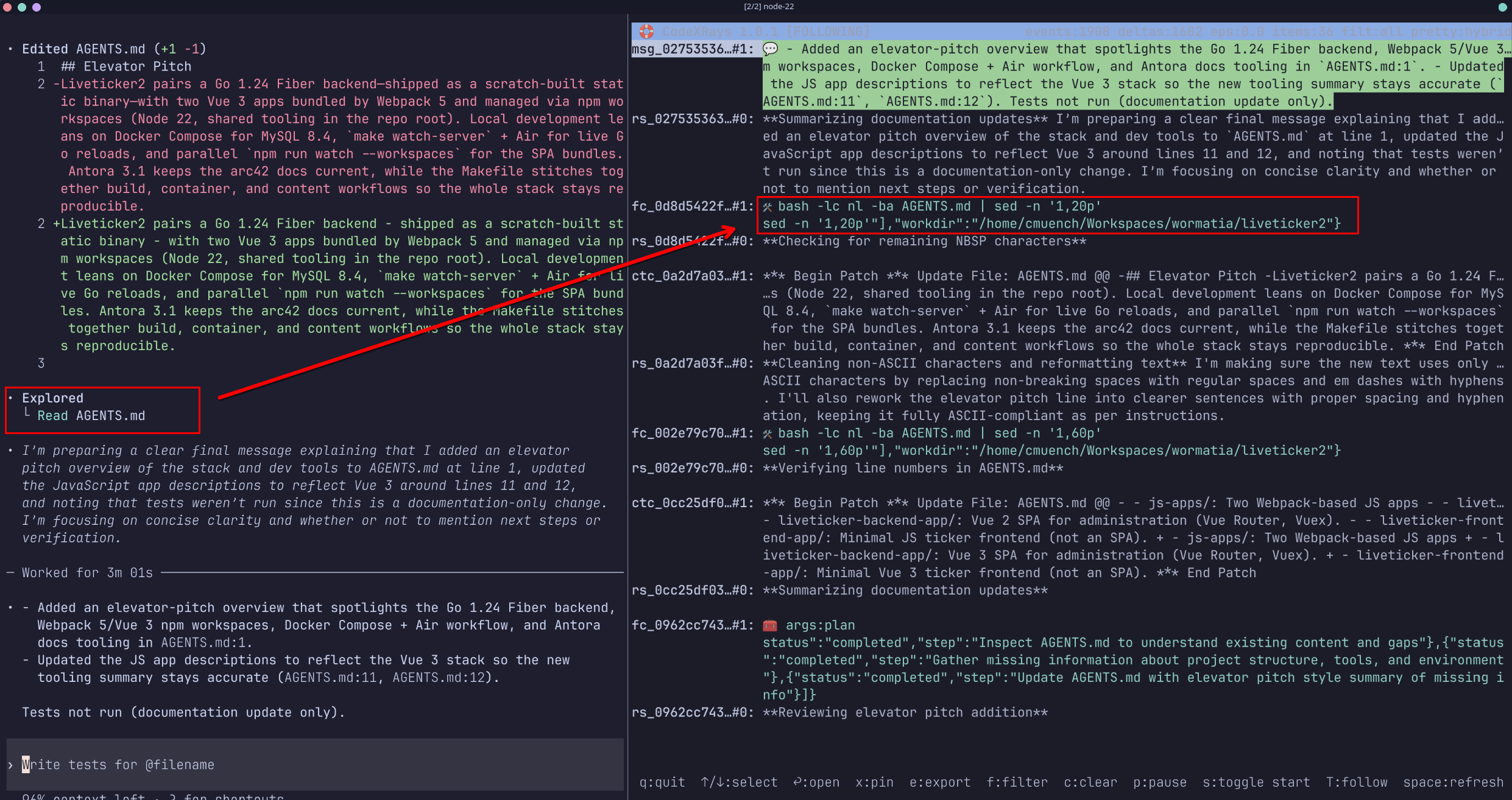
I will keep trying out the tool. It is also possible to filter in the terminal, pin individual messages, or pause logging during an active session.
All of that can be quite useful.
I hope you can use this tool to improve your workflow too.