
Codex can call local tools when needed. Sometimes, however, it can be useful for Codex to easily access other information too. I host a Forgejo server for my private projects. This gave me the idea of trying out whether Codex (just like VS Code) could be taught to access an MCP server I run through the Model Context Protocol (MCP). And sure enough, there is experimental MCP tool support for Codex.
Info: This blog post describes how I get Codex to call MCP tools. It is also possible to start Codex itself as an MCP server so that other agents can control Codex remotely.
Official documentation:
https://developers.openai.com/codex/mcp/
Supported MCP Features
Local MCP servers can be integrated either through the STDIO protocol or via a URL.
- STDIO servers (servers that can be started through a command on your computer)
- Environment variables
- Streamable HTTP servers (servers accessible through a URL)
- Bearer token authentication
- OAuth authentication (requires experimental_use_rmcp_client = true in config.toml)
Command Line
The configuration of MCP servers is stored in the file ~/.codex/config.toml.
You can also use the command line for configuration. Several MCP subcommands are available for this.
❯ codex mcp --help
[experimental] Run Codex as an MCP server and manage MCP servers

Usage: codex mcp [OPTIONS] <COMMAND>

Commands:
  list    [experimental] List configured MCP servers
  get     [experimental] Show details for a configured MCP server
  add     [experimental] Add a global MCP server entry
  remove  [experimental] Remove a global MCP server entry
  login   [experimental] Authenticate with a configured MCP server via OAuth. Requires experimental_use_rmcp_client = true in config.toml
  logout  [experimental] Remove stored OAuth credentials for a server. Requires experimental_use_rmcp_client = true in config.toml
  help    Print this message or the help of the given subcommand(s)
Registering an MCP Server
I integrated the Forgejo MCP server installed locally on my development machine directly through STDIO. The server only needs a Personal Access Key for authentication. Codex allows you to define environment variables in the configuration. The Forgejo MCP server can receive the token either through the --token option or, alternatively, through the FORGEJO_ACCESS_TOKEN environment variable. I chose the second option.
Registration then looks like this:
codex mcp add forgejo --env FORGEJO_ACCESS_TOKEN="xxxxxxxxxxxxxxxxxxxxxxxxx" forgejo-mcp ---url https://git.muench.dev
You can easily check this by running the mcp list command.
In my case, it looks like this:
❯ codex mcp list

Name     Command     Args                       Env                                                Cwd  Status   Auth
forgejo  forgejo-mcp ---url https://git.muench.dev FORGEJO_ACCESS_TOKEN=xxxxxxxxxxxxxxxxxxxxxxxxxxxxxxxxxxxxxxxx -    enabled  Unsupported
You can also display the configuration using mcp get with the name of the registered MCP server:
❯ codex mcp get forgejo
forgejo
  enabled: true
  transport: stdio
  command: forgejo-mcp
  args: ---url https://git.muench.dev
  cwd: -
  env: FORGEJO_ACCESS_TOKEN=xxxxxxxxxxxxxxxxxxxxxxxxxxxxxxxxxxxxxxxx
  remove: codex mcp remove forgejo
Unfortunately, I have not yet found a way to list or display the tools behind the Forgejo server through Codex, or to restrict them.
The MCP server comes with quite a few tools. Since I also use the MCP server through VS Code, I know how many tools the Forgejo server provides and what they are. It would certainly be useful if you could "switch off" one tool or another for Codex.
The screenshot from my IntelliJ shows all the available tools:
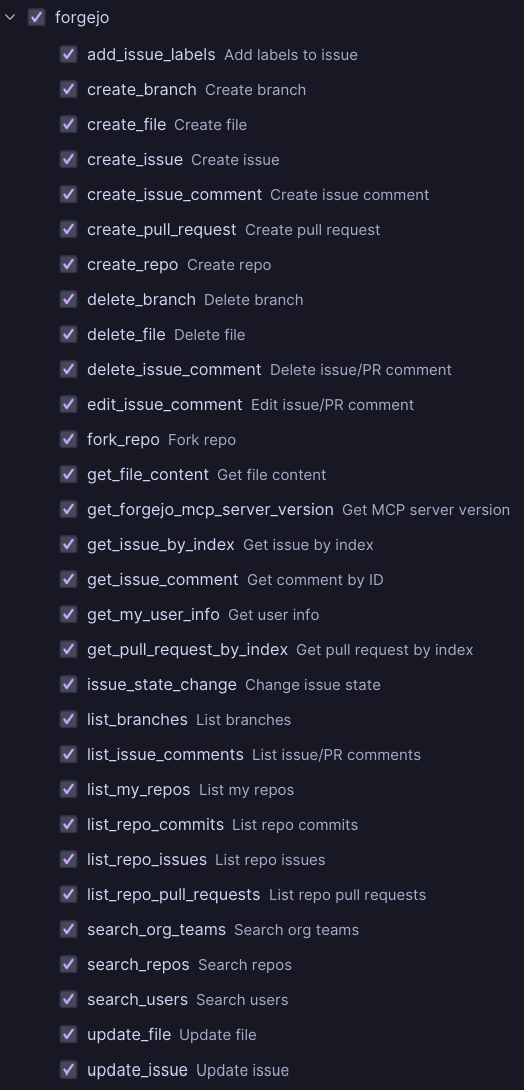
Tool list in the MCP server view in my IntelliJ Ultimate IDE
The MCP Server in Action
For testing, I chose a feature in a private project. The feature is recorded as an issue in Forgejo.
My test now involves telling Codex only that it should work on feature number 230.
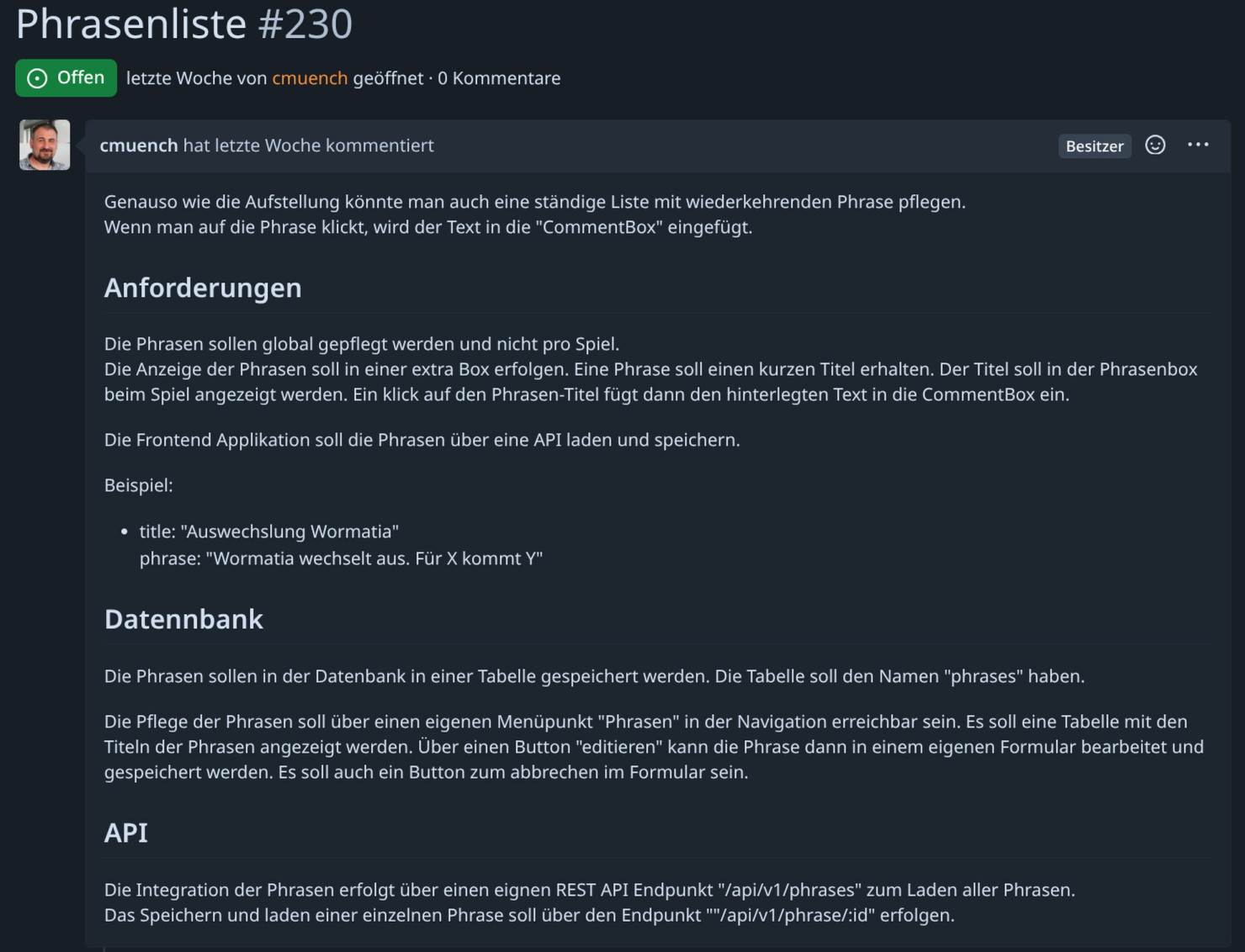
And with a simple Implement the forgejo issue "Phrasenliste #230", it gets started. I deliberately did not provide any additional information, since the agent is supposed to communicate directly with Forgejo through the MCP tool.
In the screenshot, you can now see that Codex retrieved the information itself through the tool:
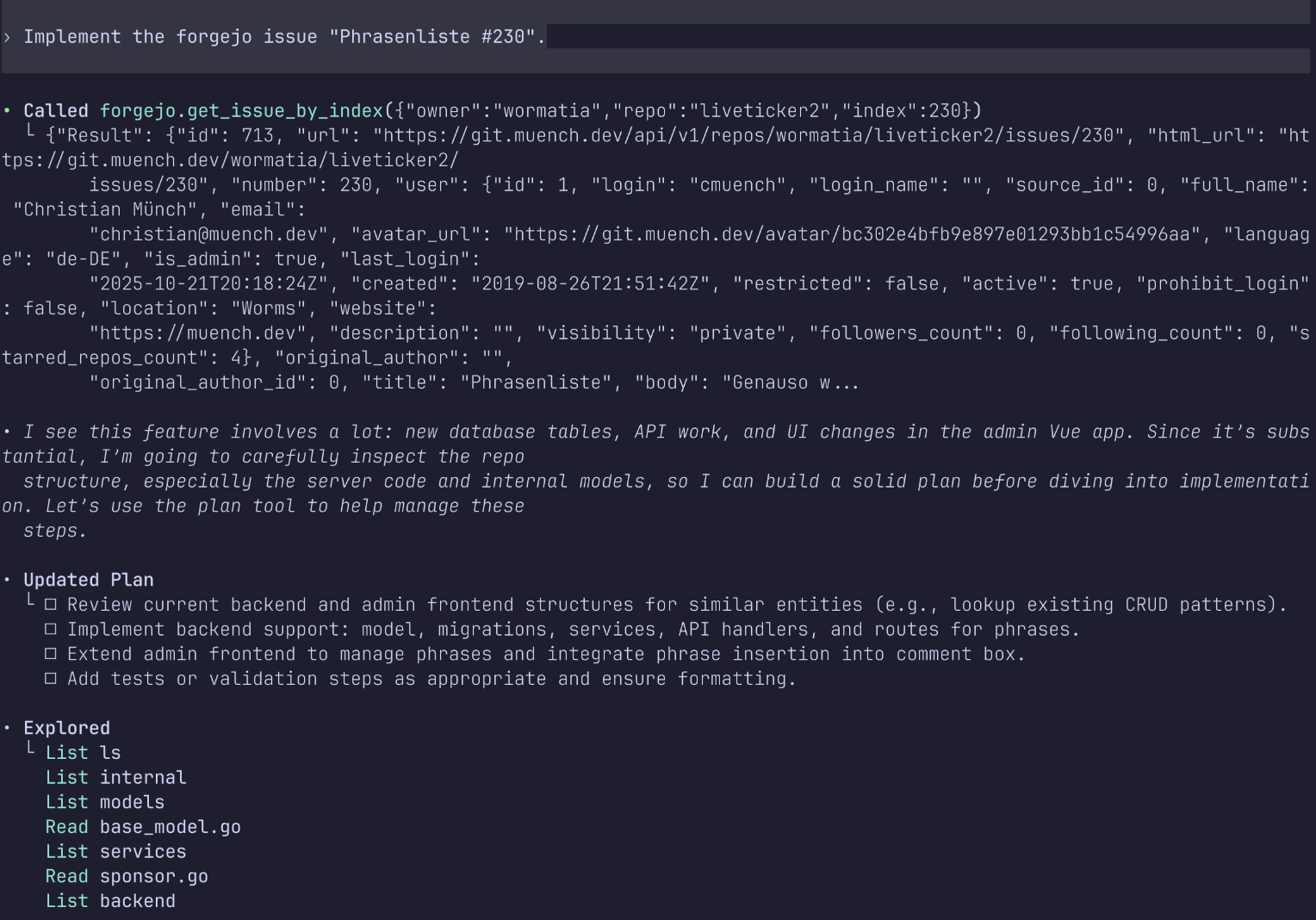
The Result
And this is what the result looks like in the application.
Here is the changeset of the modified files:
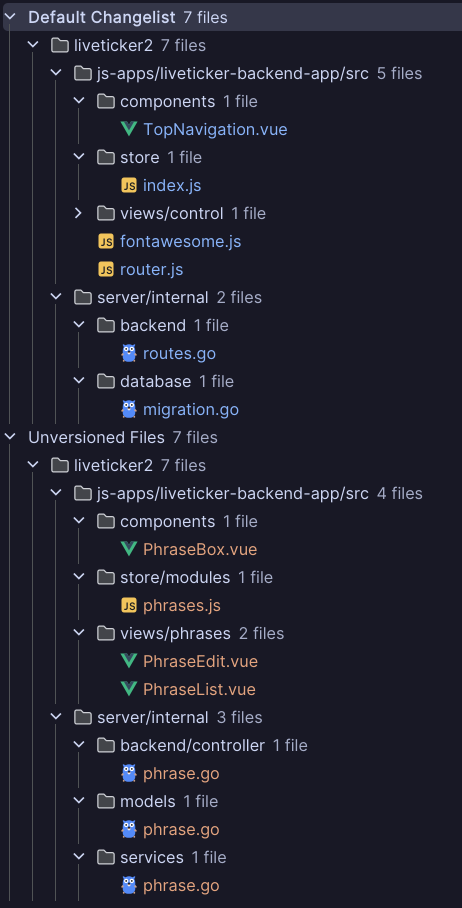
In the backend application, the database was extended through a migration script, as was the REST API.
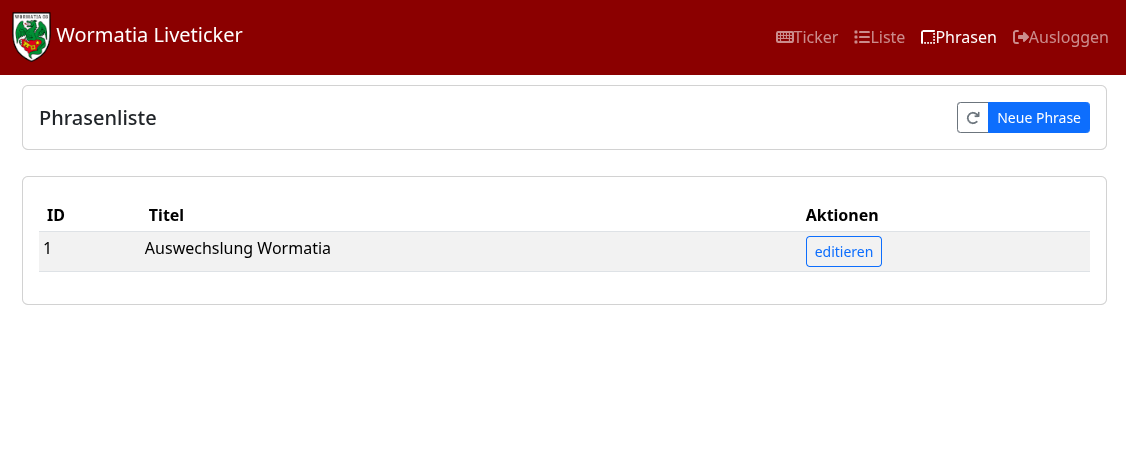
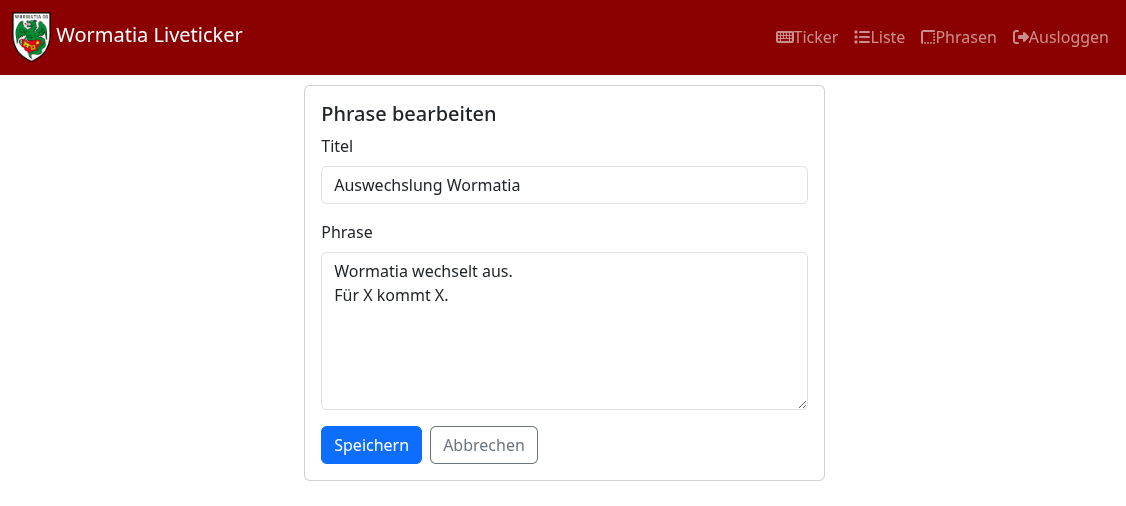
The UI was extended with a grid and a form.
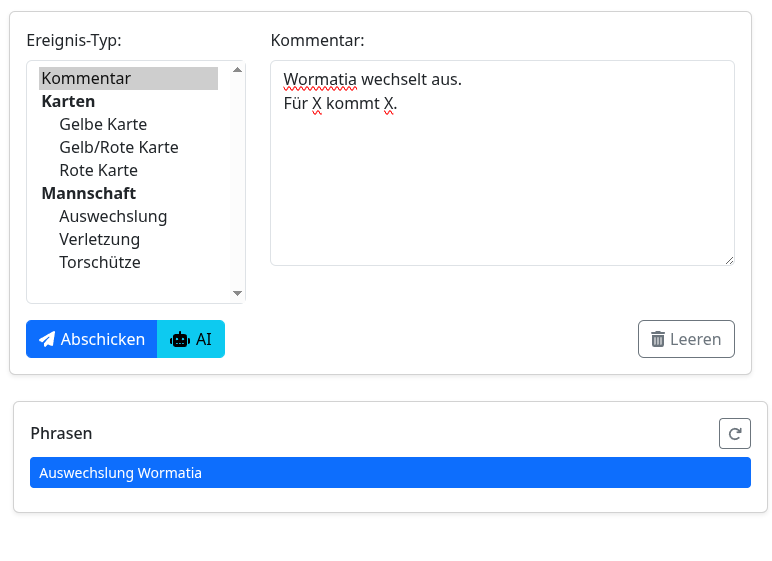
A box for the phrases was added to the active live ticker screen.
The new grid:
The new form:
Phrases in the active live ticker:
All features worked perfectly right away.
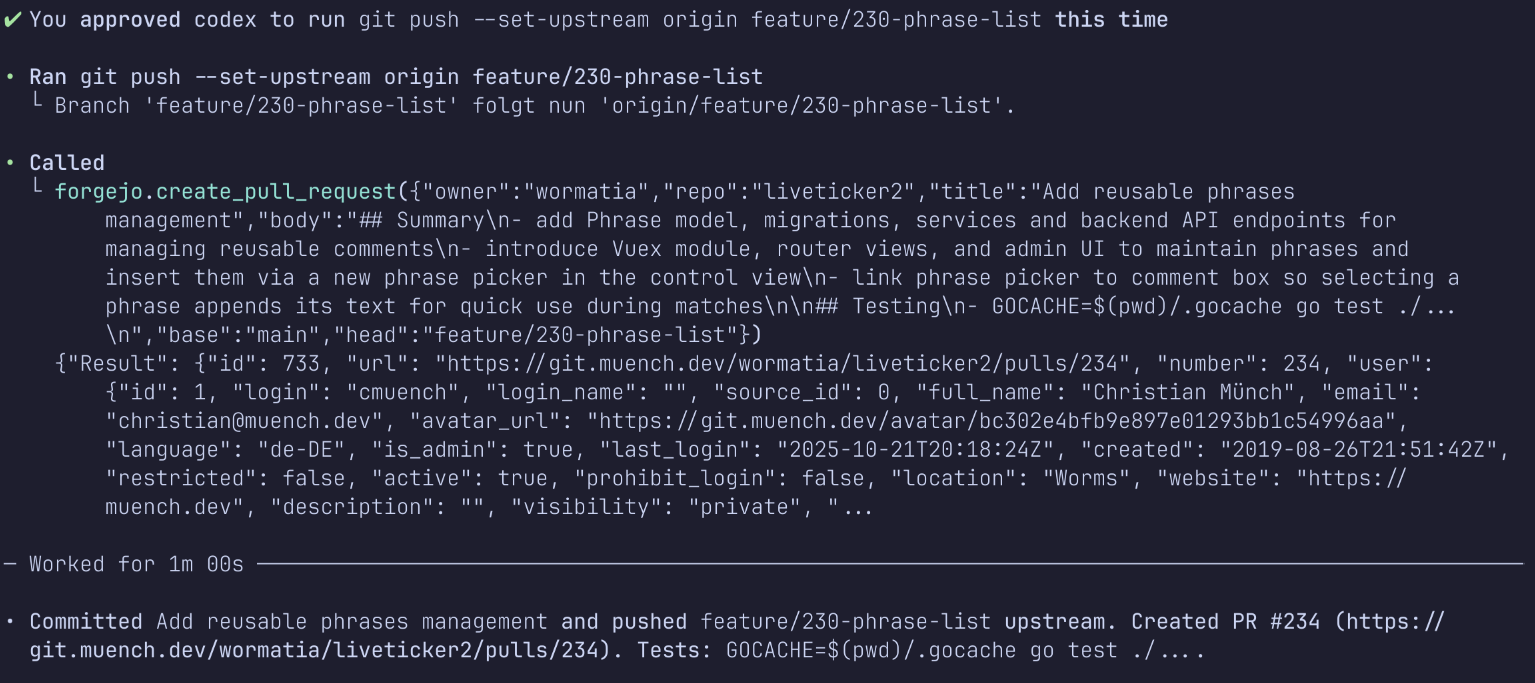
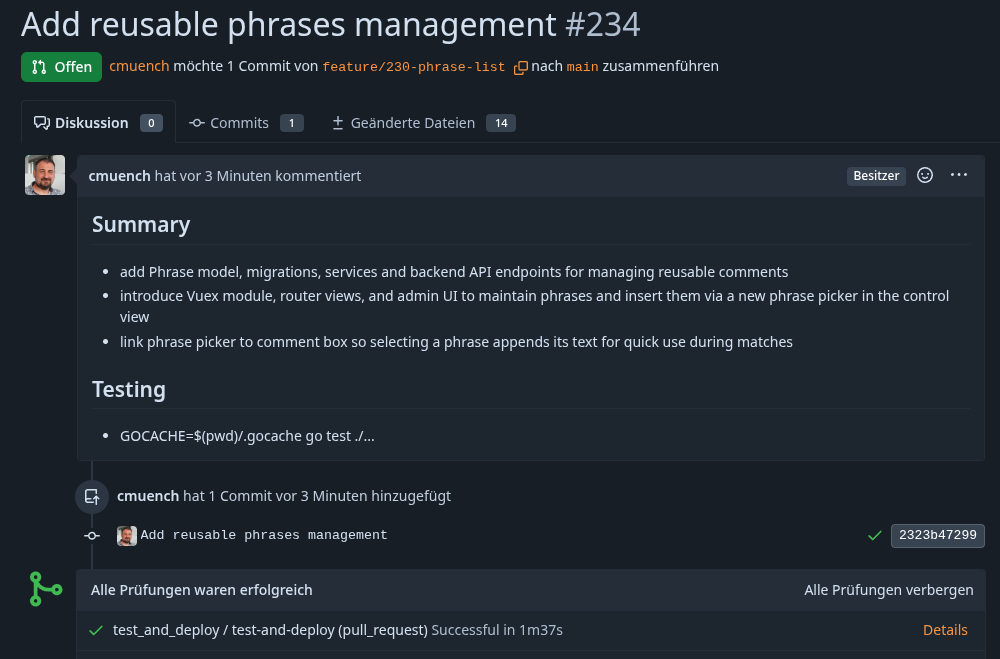
Afterward, I instructed the agent to create a pull request, which again happened through the MCP server.
The result is impressive. Even the unit tests passed on the first attempt.
And here is the result of the entire test:
Conclusion
Experimental MCP support in Codex opens up exciting possibilities. As the example shows, the agent can now directly access information from my self-hosted Forgejo server to understand issues and make code changes based on them – right through to creating a pull request. This takes automation in the development process to another level while giving me control over the connected systems. There is certainly also a lot to consider when securing MCP servers. For me, though, this was a great test, and I hope you now have some new ideas too.