
Since I have more and more remote meetings in which I need to present, I have been thinking for a while about optimizing and automating things a little more.
Ideas include changing certain settings in OBS more quickly or automatically adjusting a few settings in Zoom.
Automatically arranging windows is also always an issue when presenting something.
One nice piece of hardware I had always had my eye on was a Stream Deck.
What is Stream Deck?
Stream Deck (not to be confused with Steamdeck!) is something like an external keyboard whose keys can be dynamically updated.
Each key consists of a mini display that can be controlled by software. Key presses can also be handled.
The official Stream Deck software is extremely extensive, supports a great many workflows and already comes with interfaces for all sorts of things. Since Stream Deck is used by professional streamers, interfaces to all the well-known streaming platforms already exist.
If something does not work out of the box, you can often install extensions from a marketplace.
Unfortunately, the official software is only available for Windows and MacOS. So Linux users are left out in the cold yet again.
Fortunately, resourceful developers have at least managed to control the Stream Deck, so Linux users can do something with it too.
So I gave it a chance and bought a Stream Deck MK.2.
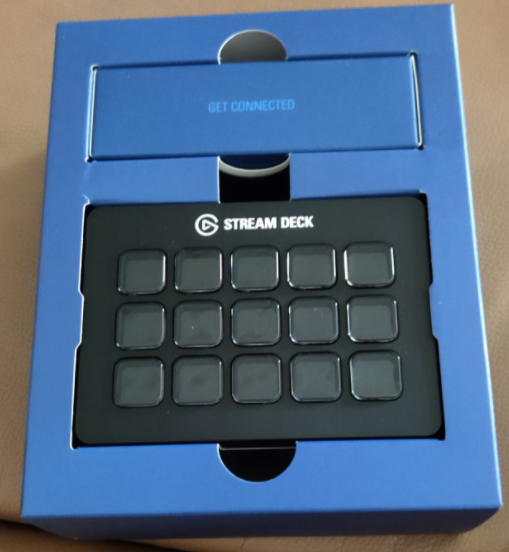
Stream Deck on Linux
The heart of the integration is the Python Elgato Stream Deck Library.
It makes it easy to control buttons. You can also respond to key presses.
For anyone who only wants to configure things rather than program them, there is streamdeck-ui, among other options.
It makes configuring the buttons in a graphical interface very easy.
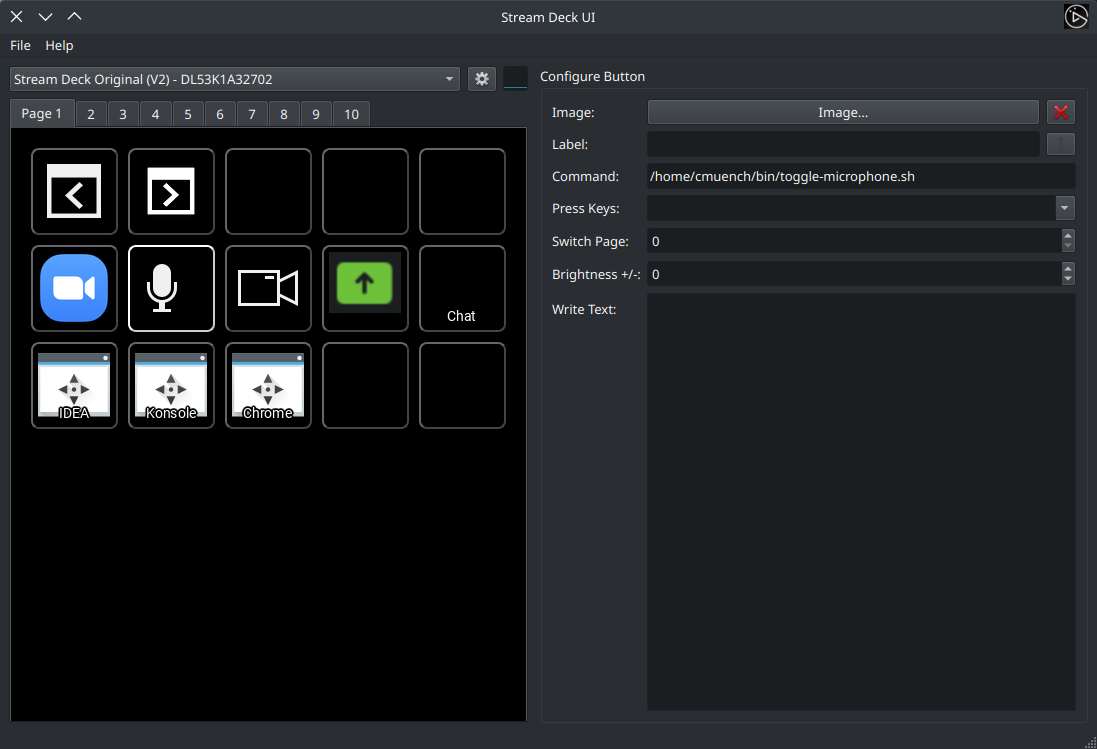
It is important to create a few udev rules for the Stream Deck.
For my MK.2, I created the file /etc/udev/rules.d/70-streamdeck.rules with the following contents:
SUBSYSTEM=="usb", ATTRS{idVendor}=="0fd9", ATTRS{idProduct}=="0060", TAG+="uaccess"
SUBSYSTEM=="usb", ATTRS{idVendor}=="0fd9", ATTRS{idProduct}=="0063", TAG+="uaccess"
SUBSYSTEM=="usb", ATTRS{idVendor}=="0fd9", ATTRS{idProduct}=="006c", TAG+="uaccess"
SUBSYSTEM=="usb", ATTRS{idVendor}=="0fd9", ATTRS{idProduct}=="006d", TAG+="uaccess"
SUBSYSTEM=="usb", ATTRS{idVendor}=="0fd9", ATTRS{idProduct}=="0080", TAG+="uaccess"
After that, the Stream Deck needs to be connected via USB or, if it is already connected, unplugged and plugged back in.
streamdeck-ui should then recognize the device.
D-BUS commands at the press of a button
What I have done now is very simple. One use case for me is turning the microphone off and on in a Zoom meeting (or other meetings too).
For this, I thought it would be good to have a script that "toggles" the microphone. This should happen both globally in my KDE environment and in the open Zoom window.
The script now looks like this:
#!/bin/bash

# zoom
xdotool search --name '^Zoom Meeting.*$' windowactivate --sync key alt+a

# MS Teams
xdotool search --name '.*Microsoft Teams.*$' windowactivate --sync key ctrl+shift+m

# general microphone
qdbus org.kde.kglobalaccel /component/kmix invokeShortcut "mic_mute"
Technically, here is what happens. The xdotool program (which does not work with Wayland) finds the window containing the Zoom meeting and simulates an "alt+a" key press. Just as if you had activated the window and pressed the keys yourself. In my Zoom client, that is the keyboard shortcut for "muting" the microphone.
The qdbus program can send commands directly over D-Bus.
D-Bus (from Desktop Bus) is a free program library for inter-process communication.
https://de.wikipedia.org/wiki/D-Bus
Here, I send the "mic_mute" command to the kmixer application, which then switches the microphone off globally.
Actually, the second command would be enough, but I would like to see visually in my Zoom client that my microphone is switched off.
Unfortunately, streamdeck-ui does not yet support dynamically changing the icons of individual buttons to display the state directly on the Stream Deck too.
That does work on Windows and MacOS, though. Ideas for extending the open-source software accordingly already exist.
I then simply assigned the script above to a button action.
Changing the session profile in Konsole
For presentations, it is often necessary to make the fonts in my terminal a little larger so everyone can read them easily.
For this, I created a profile called "Präsentation" in Konsole.
The question now is whether it is possible to assign this kind of profile change directly to a button.
Spoiler ... Yes, it is possible. Here is how.
Using qdbusviewer, I looked at the D-Bus methods provided by Konsole.
And sure enough, there is a setProfile method on a session.
You can also use it to test commands.
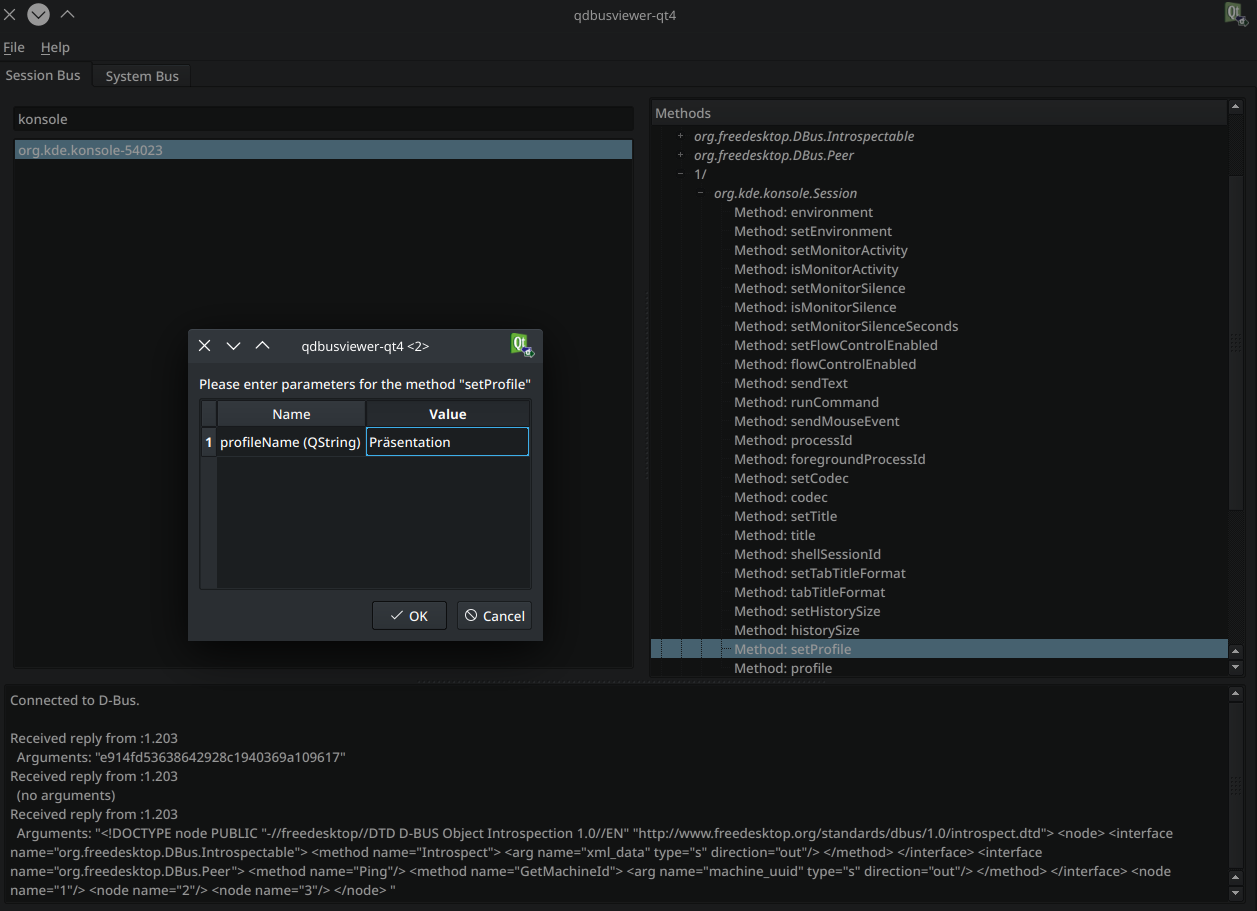
When you run the command, however, it is only executed on one session. If I have several tabs open in Konsole, those are several sessions.
So I also needed to obtain information about the sessions. Fortunately, that is possible too, using the Introspect method on the session object. It returns the result as an XML document.
You can then execute the setProfile method once for each session.
Now all you need to do is dynamically determine the window ID of the open Konsole program and process the XML using xq.
The result is this Bash script:
#!/bin/bash

if [ -z "$1 ] || [ -z "$2 ]; then
    echo "usage $0 <method> <arguments>"
    exit 1;
fi

if ! command -v qdbus &> /dev/null; then
    echo "qdbus command was not found"
    exit 1
fi

if ! command -v xq &> /dev/null; then
    echo "xq command was not found"
    exit 1
fi

qdbus org.kde.konsole-$(pidof -s konsole) /Sessions Introspect | \
        xq -r '.node.node[]."@name"' | \
        xargs -i qdbus org.kde.konsole-$(pidof -s konsole) /Sessions/{} $1 $2
In the configuration, it looks like this:
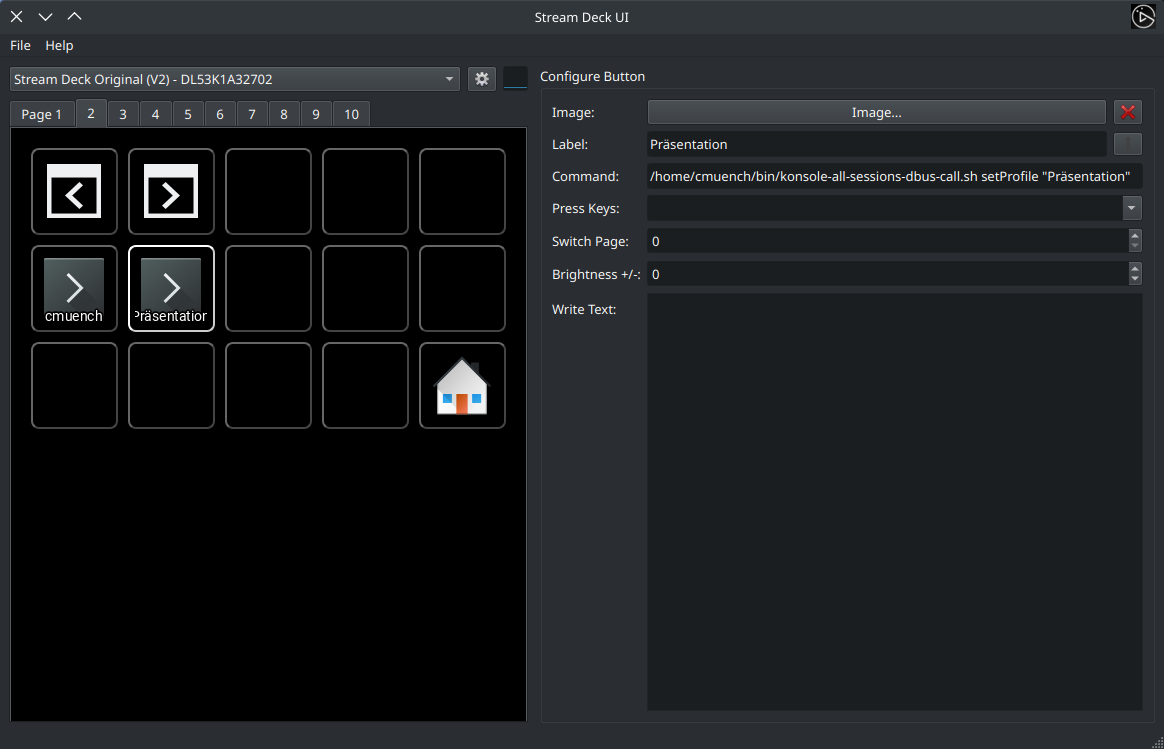
Every change in the UI is immediately transferred to the hardware.
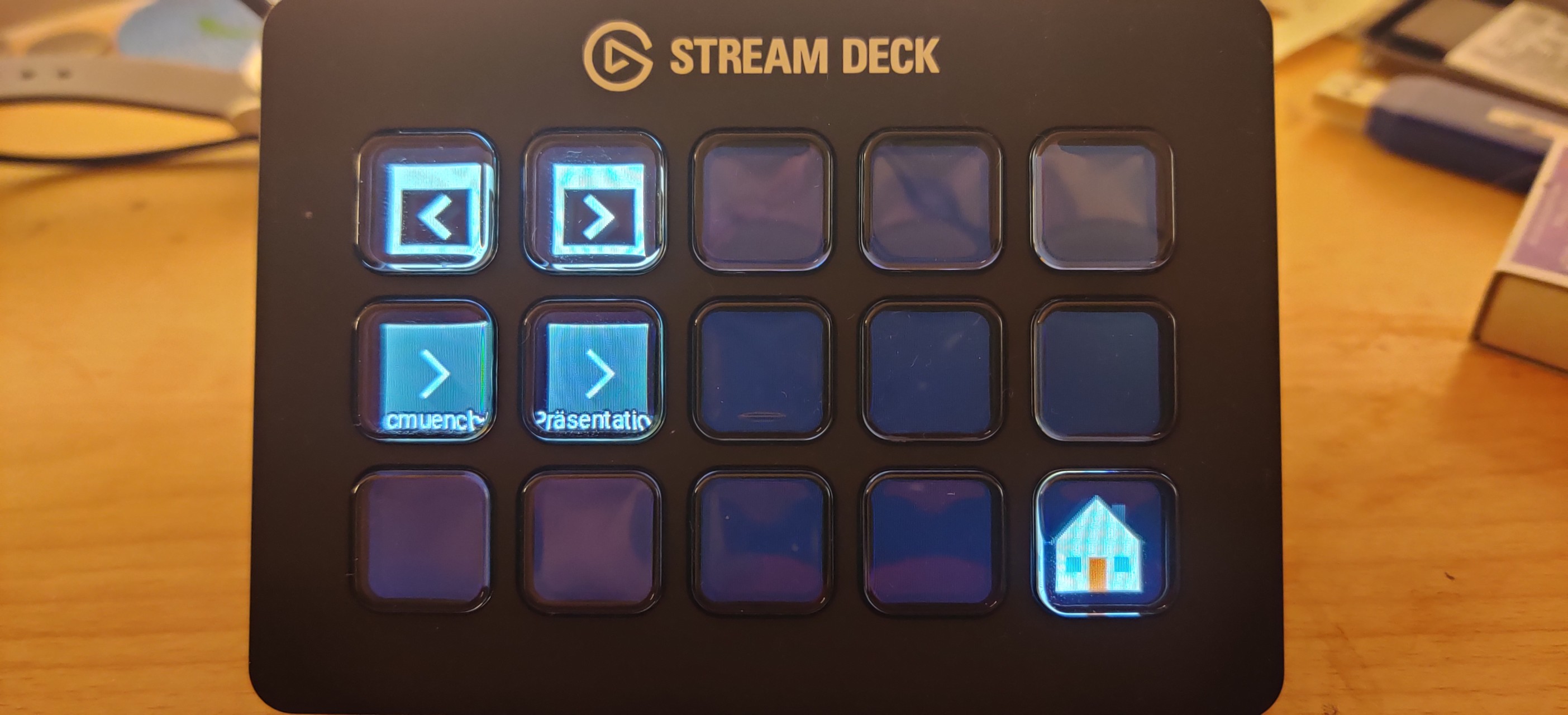
I hope this has given you some new ideas too.
- https://github.com/jordansissel/xdotool
- https://timothycrosley.github.io/streamdeck-ui/
- https://doc.qt.io/qt-5/qdbusviewer.html
- https://www.elgato.com/de/stream-deck-mk2
Update 11.03.2022
- Microphone example extended to include MS Teams.