
After a long time, I am finally getting back to blogging on my own blog. I have been planning to put together a presentation on productivity and developer tools for a while. I have been collecting material for the presentation for some time. We will see whether I get around to presenting the whole thing at a meetup.
Here on the blog, though, I would like to start a small “Productivity Tools” series right now.
The first article is about a tool I have grown fond of, called FZF, which my colleague @sweikenb recommended to me some time ago.
What Is FZF?
The name FZF stands for “fuzzy finder.” It is a command-line tool. So this is not about a GUI tool. As you will see, almost all the tools that really speed up your everyday work as a developer or administrator do not actually come with a graphical interface.
The tool's main purpose is to make command-line history easier and faster to use. You often look for a command you ran some time ago. Or you need to run the same command again. Most modern shells already come with a tool preinstalled for this. In Bash, for example, it is “history.” Its output is a list of the most recent commands. Each command is numbered.
Example from my CLI:
$> history
3104* ls -al
3105* sudo pacman -Sy mc
3106* wmc
3107* /usr/bin/mc
3108* ls -al
3109* xkill
3110* kill
3111* ps aux | grep typora
3112* killall Typora
If you want to run command no. 3104 again, for example, you can do it like this:
$> !3104
You can usually also search the history using the shortcut Ctrl + R.
This is where FZF comes in. It replaces the Ctrl + R shortcut with its own implementation, which is much more convenient.
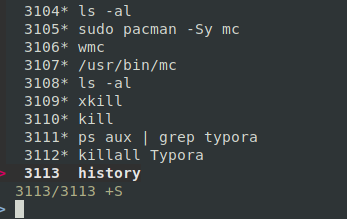
FZF in Action
You can now navigate using the arrow keys. But the tool's strength is its “fuzzy search.” When you type a term or several terms, it searches the entire history. You can then use the arrow keys again to navigate and select an old command.
But that is not all. The tool can also resolve filenames.
For example, if you type “vim **
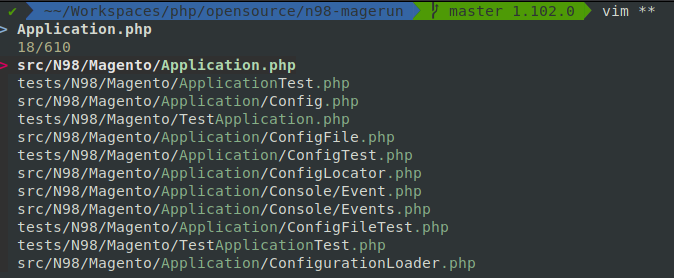
Example Search for "Application.php"
As you can see, this is very convenient and fast.
The “**” resolution also works for other commands in principle, such as “ls.”
Searching for hostnames and environment variables also works with FZF.
ssh **<TAB>
telnet **<TAB>

unset **<TAB>
export **<TAB>
unalias **<TAB>
The best thing to do is simply try the tool yourself.
Installation
Since the tool is written in golang, it is available for practically every platform. Even Windows users can speed up their command line with it. Personally, though, I have only used it on my MacBook at work and my private Linux machine so far.
Installation via common package managers is possible (yes, even on Windows). I preferred installing it via “git clone” myself. This works wonderfully on my MacBook and Linux machine.
git clone --depth 1 https://github.com/junegunn/fzf.git ~/.fzf
~/.fzf/install
The installer installs into the shell you are currently using. Bash and zsh are supported. VIM and tmux plugins are also available.
For a more detailed description, please refer to the Github page: https://github.com/junegunn/fzf#installation
Have fun!